Table of Contents
Quick Comparison Table
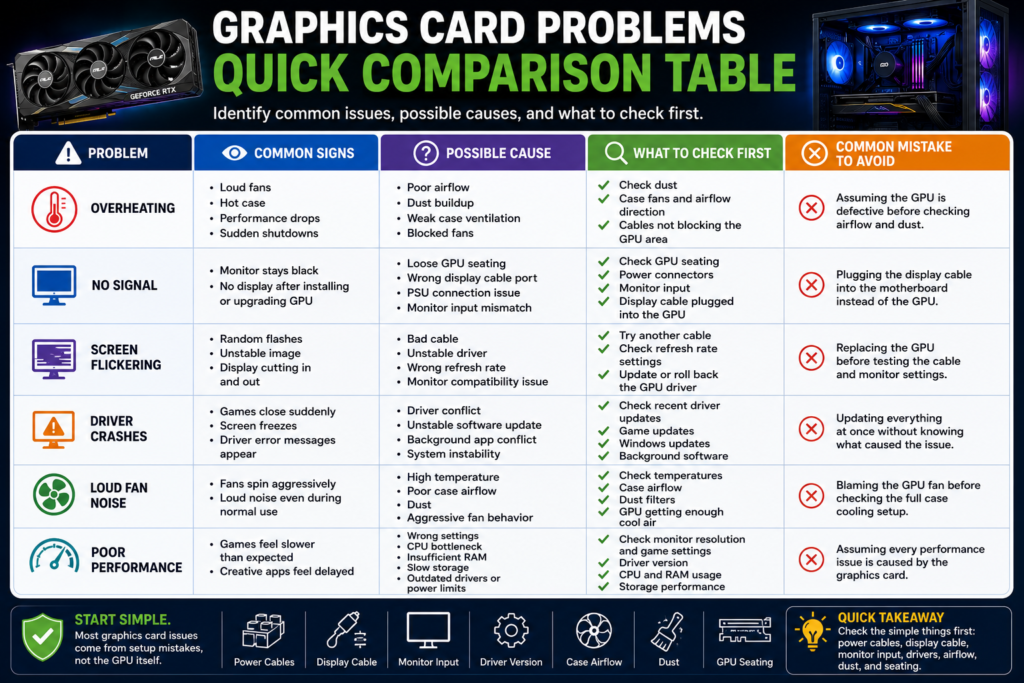
Graphics card problems can come from many different areas, including power supply issues, poor airflow, driver conflicts, loose connections, monitor settings, or an aging GPU. Before assuming the graphics card is broken, it is better to check the most common causes step by step.
This quick comparison table gives you a simple way to match common GPU symptoms with likely causes and first troubleshooting steps. It is not a replacement for professional repair, but it can help you avoid the most common mistakes before you upgrade, return, or replace your graphics card.
| Problem | Common Signs | Possible Cause | What to Check First | Common Mistake to Avoid |
|---|---|---|---|---|
| Overheating | Loud fans, hot case, performance drops, or sudden shutdowns | Poor airflow, dust buildup, weak case ventilation, or blocked fans | Check dust, case fans, airflow direction, and whether cables block the GPU area | Assuming the GPU is defective before checking airflow and dust |
| No Signal | Monitor stays black after installing or upgrading the GPU | Loose GPU seating, wrong display cable port, PSU connection issue, or monitor input mismatch | Check GPU seating, power connectors, monitor input, and whether the display cable is plugged into the graphics card | Plugging the display cable into the motherboard instead of the GPU |
| Screen Flickering | Random flashes, unstable image, or display cutting in and out | Bad cable, unstable driver, wrong refresh rate, or monitor compatibility issue | Try another cable, check refresh rate settings, and update or roll back the GPU driver | Replacing the GPU before testing the cable and monitor settings |
| Driver Crashes | Games close suddenly, screen freezes, or driver error messages appear | Driver conflict, unstable software update, background app conflict, or system instability | Check recent driver updates, game updates, Windows updates, and background software | Updating everything at once without knowing what caused the issue |
| Loud Fan Noise | GPU fans spin aggressively even during normal use | High temperature, poor case airflow, dust, or aggressive fan behavior | Check temperatures, case airflow, dust filters, and whether the GPU is getting enough cool air | Blaming the GPU fan before checking the full case cooling setup |
| Poor Performance | Games feel slower than expected or creative apps feel delayed | Wrong settings, CPU bottleneck, insufficient RAM, slow storage, outdated drivers, or power limits | Check monitor resolution, game settings, driver version, CPU usage, RAM usage, and storage behavior | Assuming every performance issue is caused by the graphics card |
If you are using a newer card such as the XFX Swift AMD Radeon RX 9060 XT, GIGABYTE RTX 5050, ASUS Dual RTX 5060, ASUS Prime RTX 5070 Ti, or ZOTAC Gaming RTX 5080, the same basic checks still apply. Higher-end cards may need more careful planning around power supply, case clearance, cooling, and airflow, while lower-tier cards can still run into issues if the system is poorly configured.
The key is to separate a real hardware problem from a setup problem. A loose cable, weak power supply, outdated driver, poor airflow path, or wrong monitor setting can look like a GPU failure even when the graphics card itself is not the root cause.
Quick takeaway: Start with the simple checks first: power cables, display cable, monitor input, driver version, case airflow, dust, and GPU seating. Many graphics card problems come from setup mistakes, not the graphics card itself.
Common Graphics Card Problems to Watch For
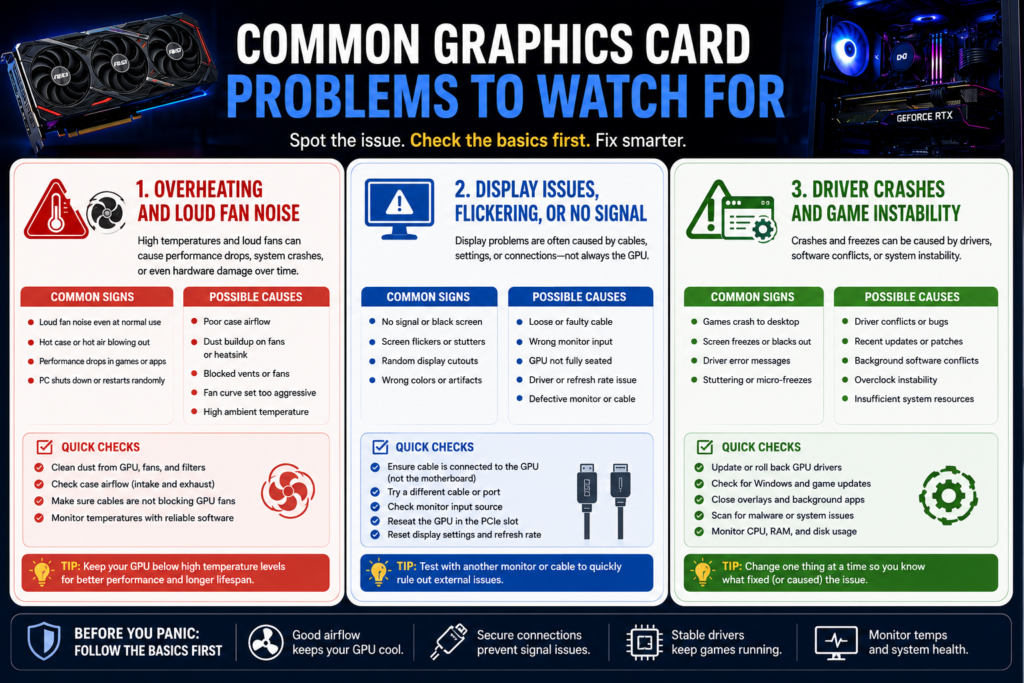
Graphics card problems are not always caused by a broken GPU. In many cases, the issue may come from poor airflow, loose cables, driver conflicts, monitor settings, power delivery, or a system compatibility problem. Before replacing your graphics card, it is better to identify the symptom and check the simplest causes first.
Whether you are using an XFX Swift AMD Radeon RX 9060 XT, GIGABYTE RTX 5050, ASUS Dual RTX 5060, ASUS Prime RTX 5070 Ti, or ZOTAC Gaming RTX 5080, the same basic troubleshooting logic applies. Start with heat, display signal, and software stability before assuming the card itself has failed.
Overheating and Loud Fan Noise
Overheating is one of the most common graphics card problems, especially in systems with poor case airflow or dust buildup. Signs may include loud fan noise, a hot PC case, sudden performance drops, or shutdowns during heavier workloads. A GPU may also become louder if it is not getting enough cool air from the case.
Before blaming the graphics card, check the airflow path inside your PC. Make sure intake fans are not blocked, exhaust fans are working properly, dust filters are clean, and cables are not sitting directly in front of the GPU fans. A powerful graphics card can still run poorly if the case traps heat around it.
If the fan noise suddenly becomes louder than usual, do not ignore it. Loud fans can be a sign that the card is working harder to control temperature. It may also mean the case needs cleaning, the fan curve is aggressive, or the system is placed in an area with poor ventilation.
Display Issues, Flickering, or No Signal
Display problems can be confusing because they may look like a GPU failure even when the cause is simple. A black screen, flickering display, unstable image, or “no signal” message may come from the display cable, monitor input, driver settings, or a loose GPU connection.
If your monitor shows no signal after installing a new graphics card, check whether the display cable is connected to the graphics card instead of the motherboard. This is one of the most common setup mistakes. Also confirm that the GPU is fully seated in the PCIe slot and that all required power connectors are properly attached.
For flickering or random display cutouts, try a different cable, test another monitor port, and check your refresh rate settings. DisplayPort and HDMI cables can also cause issues if they are damaged, low quality, or not suitable for your monitor setup. Do not replace the GPU before testing these simpler causes.
Driver Crashes and Game Instability
Driver crashes and game instability can happen after a new driver update, game patch, Windows update, or software conflict. Common signs include games closing suddenly, screen freezes, black screens, driver error messages, or unstable performance after changing settings.
The mistake is updating everything at once and then not knowing what caused the problem. If instability starts after a driver update, check whether other users are reporting similar issues and consider rolling back to a previous stable driver if needed. If the issue happens only in one game, the game update or settings may be the problem rather than the graphics card.
Background software can also create instability. Recording tools, overlays, RGB control software, monitoring apps, and overclocking utilities may conflict with certain games or drivers. If crashes keep happening, test the system with fewer background apps running before assuming the GPU hardware is failing.
Quick takeaway: The most common graphics card problems usually start with heat, display signal, or driver stability. Check airflow, cables, monitor input, GPU seating, power connectors, and recent software updates before deciding that the graphics card needs to be replaced.
Graphics Card Installation Mistakes
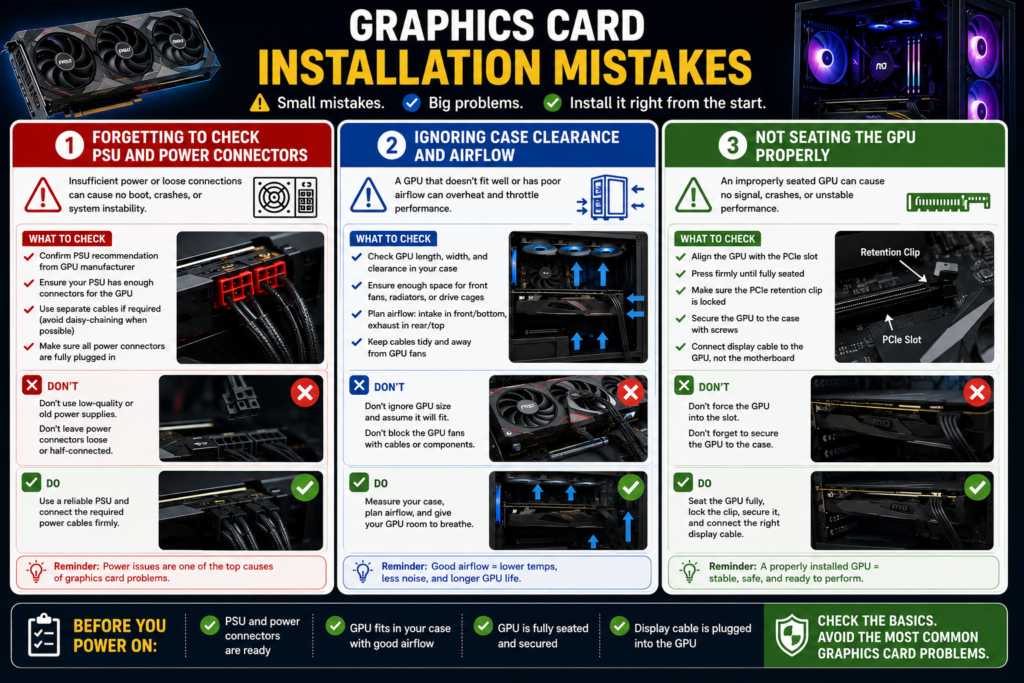
Many graphics card problems start before the PC is even turned on. A new GPU may be perfectly fine, but poor installation can lead to no signal, unstable performance, loud fan noise, crashes, or power-related issues. That is why installation mistakes are worth checking before you assume the graphics card itself is defective.
Whether you are installing an XFX Swift AMD Radeon RX 9060 XT, GIGABYTE RTX 5050, ASUS Dual RTX 5060, ASUS Prime RTX 5070 Ti, or ZOTAC Gaming RTX 5080, the basic setup rules are similar. Check the power supply, confirm physical fit, plan airflow, and make sure the card is seated correctly before closing the case.
Forgetting to Check PSU and Power Connectors
One of the biggest installation mistakes is assuming your current power supply is automatically ready for a new graphics card. A GPU upgrade can put more demand on the system, especially if you are moving to a stronger card. Before buying or installing, check the official power supply recommendation and required power connectors from the product listing or manufacturer page.
Do not guess the PSU requirement based only on the GPU name. The power supply needs to support the graphics card, CPU, storage, case fans, and the rest of the system. An older or low-quality PSU may also become a problem even if the wattage looks acceptable on paper.
Power connectors also need attention. Make sure the required GPU power cable is fully connected and not loosely attached. A loose or incorrect power connection can cause boot failure, crashes, black screens, or unstable behavior under load.
The safer approach is simple: confirm the PSU recommendation, check cable compatibility, inspect the condition of your power supply, and avoid forcing any connector that does not fit correctly.
Ignoring Case Clearance and Airflow
Another common mistake is checking the graphics card model but not checking whether it fits inside the case. A GPU may be the right choice for your needs, but it can still be the wrong choice for your case if the card is too long, too thick, or leaves too little room for cables and airflow.
Before installation, compare the official graphics card dimensions with your case GPU clearance. Also check whether front fans, radiators, drive cages, or cable routing will reduce the available space. A card that barely fits may still create airflow or cable pressure problems.
Airflow matters because the graphics card needs access to cool air. If the area around the GPU is blocked by messy cables, poor fan placement, or dust buildup, the card may run hotter and louder than expected. This can make a normal GPU behave like it has a cooling problem.
For higher-end cards, airflow planning becomes more important. Make sure your case has a clear intake and exhaust path, enough space around the GPU cooler, and clean dust filters. Do not treat cooling as an afterthought after the card is already installed.
Not Seating the GPU Properly
A graphics card that is not seated properly can cause no signal, random crashes, boot failure, or display instability. This problem is easy to miss because the card may look installed even when it is not fully locked into the PCIe slot.
Before powering on the system, make sure the GPU is aligned correctly with the PCIe slot and rear case bracket. The card should sit evenly in the slot, and the retention clip should be properly engaged. You should also secure the card to the case so it does not sag or shift during use.
Do not force the graphics card into place. If it does not seat smoothly, check for case obstruction, slot alignment, or cables getting in the way. Forcing the card can damage the connector, motherboard slot, or case bracket.
After installation, connect the display cable to the graphics card ports, not the motherboard display output. This mistake is especially common after a GPU upgrade and can make the system look like it has a graphics card problem even when the card is working normally.
Quick takeaway: The most common graphics card installation mistakes are skipping the PSU check, ignoring case clearance and airflow, and not seating the GPU properly. Before troubleshooting deeper, confirm power, fit, airflow, slot seating, and display cable placement first.
Performance and Compatibility Tips
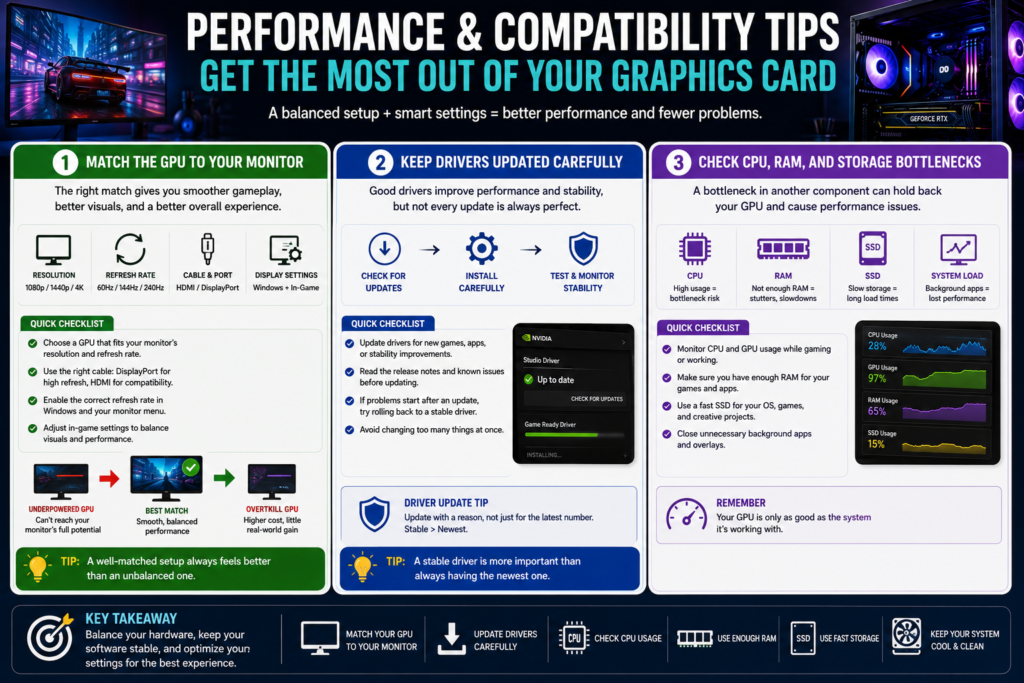
Some graphics card problems are not really hardware failures. They happen because the GPU does not match the monitor, the driver update is unstable, or another part of the system is holding performance back. Before replacing your graphics card, check whether the rest of your PC setup is actually supporting the GPU properly.
A newer graphics card can still feel disappointing if it is paired with the wrong monitor settings, an older CPU, limited RAM, slow storage, poor cooling, or messy driver updates. Performance depends on the full system, not only the GPU model.
Match the GPU to Your Monitor
Your monitor should guide your graphics card choice. A GPU that is powerful enough for 4K gaming may be unnecessary for a basic 1080p display, while a budget-focused GPU may feel limited if you expect high-refresh 1440p or 4K gaming.
For example, an ASUS Dual RTX 5060 makes more sense for a practical 1080p-focused setup. An ASUS Prime RTX 5070 Ti is a better fit if you want more flexibility for high-refresh 1440p gaming and mixed workloads. A ZOTAC Gaming RTX 5080 is easier to justify if your monitor and workload can actually use a higher-end GPU.
Monitor settings also matter. If the refresh rate, resolution, cable type, or display input is set incorrectly, your PC may not feel as smooth as expected. Before blaming the graphics card, check your display settings in Windows, your monitor menu, and the GPU control panel.
Keep Drivers Updated Carefully
GPU drivers can improve stability, game support, and software compatibility, but updating carelessly can also create problems. A new driver may fix one issue while causing another, especially around new game releases, Windows updates, or creative software changes.
The safer approach is to update drivers with a reason. If your system is stable, you may not need to rush every update immediately. If a new game, editing tool, or productivity app requires better support, then updating the driver makes more sense.
If problems begin right after a driver update, do not assume the graphics card is broken. Check whether the issue started with the update, whether other users report the same problem, and whether rolling back to a previous stable driver helps. Also avoid changing too many things at once, because that makes the real cause harder to find.
Check CPU, RAM, and Storage Bottlenecks
A graphics card cannot solve every performance issue by itself. If the CPU is struggling, RAM is limited, storage is slow, or background apps are using system resources, the GPU may not perform as expected. This can make the graphics card look weak even when another part of the system is the real bottleneck.
For gaming, a CPU bottleneck can limit smoothness in certain titles, especially if the game depends heavily on processor performance. For content creation, limited RAM or slow storage can make editing, rendering, exporting, and loading large files feel slower. For productivity tasks, background apps and system clutter can also affect performance.
Before upgrading again, check CPU usage, RAM usage, storage behavior, background apps, and system temperatures. If the GPU is not being fully used, the problem may not be the graphics card. It may be the rest of the PC holding it back.
Quick takeaway: Match your GPU to your monitor, update drivers carefully, and check CPU, RAM, storage, and background apps before blaming the graphics card. Many performance issues come from system mismatch, not the GPU alone.
Maintenance Tips for Long-Term Use
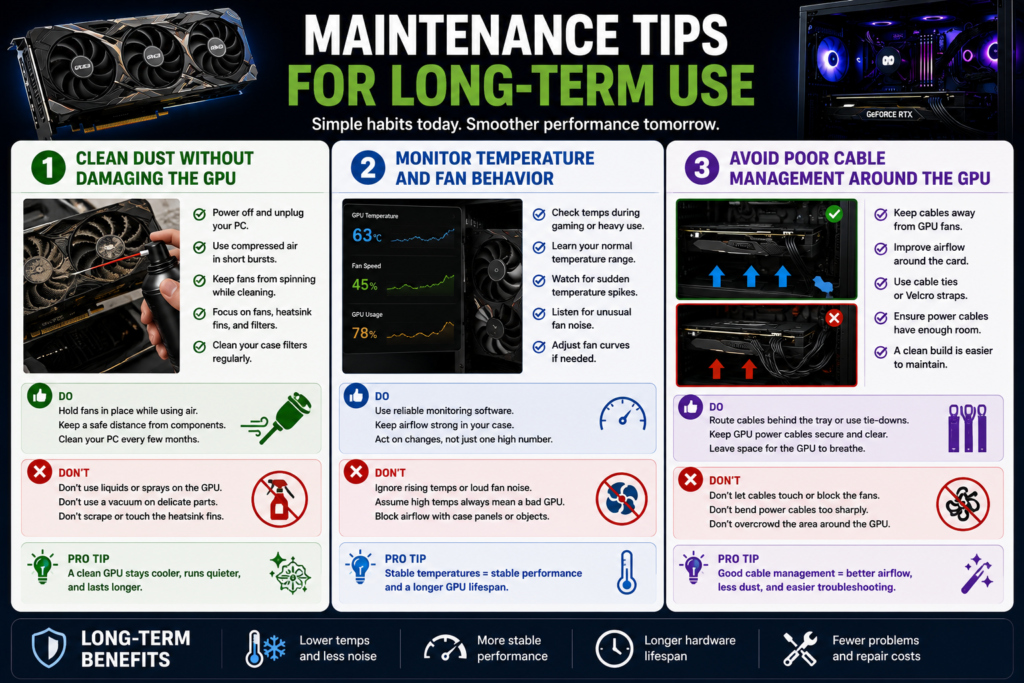
Many graphics card problems can be reduced with simple long-term maintenance. A GPU does not need constant adjustment, but it does need clean airflow, stable temperatures, careful driver habits, and enough space around the card to work properly.
Whether you are using an XFX Swift AMD Radeon RX 9060 XT, GIGABYTE RTX 5050, ASUS Dual RTX 5060, ASUS Prime RTX 5070 Ti, or ZOTAC Gaming RTX 5080, the same maintenance logic applies. Keep the card clean, watch for unusual temperature or fan behavior, and avoid blocking airflow with poor cable management.
Clean Dust Without Damaging the GPU
Dust buildup is one of the easiest graphics card problems to overlook. Over time, dust can collect on fans, heatsinks, filters, and case vents. This can reduce airflow, make the GPU fans work harder, and increase overall system noise.
The safest approach is to clean the PC carefully and avoid touching delicate components more than necessary. Power off the system, unplug it, and clean dust from case filters, intake areas, exhaust fans, and the visible area around the graphics card. Use gentle airflow and avoid spinning the GPU fans aggressively with compressed air.
Do not scrape the fan blades, push tools into the heatsink, or use liquid cleaners directly on the graphics card. If the card needs deeper cleaning or thermal maintenance, that is a more advanced task and may be better handled by someone with proper experience.
Regular light cleaning is usually better than waiting until the whole system is packed with dust. A cleaner case gives the graphics card a better chance to stay cool and stable over long-term use.
Monitor Temperature and Fan Behavior
Temperature and fan behavior can tell you a lot about the health of your graphics card setup. If the GPU suddenly becomes much louder, runs hotter than usual, or changes fan behavior without a clear reason, it may be a sign that airflow, dust, software settings, or workload behavior has changed.
You do not need to watch temperatures every minute, but it is useful to check them when you install a new GPU, change case fans, update drivers, move the PC to a new location, or notice louder fan noise. Look for changes from your normal pattern instead of focusing only on one number.
If temperatures or fan noise seem unusual, check the simple causes first. Make sure the case has enough intake and exhaust airflow, dust filters are clean, and cables are not blocking the GPU fans. Also check whether background apps, new games, or creative software are putting more load on the GPU than expected.
A loud GPU is not always defective. Sometimes the card is simply reacting to poor airflow, a dusty case, or a heavier workload. The goal is to understand why the behavior changed before assuming the graphics card needs to be replaced.
Avoid Poor Cable Management Around the GPU
Poor cable management can create more problems than many users expect. Loose cables near the graphics card can block airflow, touch fans, make the inside of the case harder to clean, and increase the chance of cable pressure around power connectors.
Keep power cables, fan cables, and front-panel cables away from the GPU fans whenever possible. Make sure the GPU power cable has enough room and is not sharply bent against the side panel. Also avoid routing thick cable bundles directly in front of the graphics card intake area.
Better cable management does not need to be complicated. The goal is to create a cleaner airflow path from intake fans to exhaust fans while keeping the graphics card area open. Velcro straps, proper routing holes, and careful cable placement can make the system easier to maintain.
Good cable management also helps future troubleshooting. When your PC is organized, it is easier to check power connectors, reseat the GPU, clean dust, inspect fans, and confirm that nothing is physically interfering with the graphics card.
Quick takeaway: For long-term GPU health, clean dust carefully, watch for unusual temperature or fan behavior, and keep cables away from the graphics card airflow path. Good maintenance will not fix every issue, but it can prevent many common graphics card problems from becoming worse.
When to Troubleshoot, Upgrade, or Replace Your Graphics Card
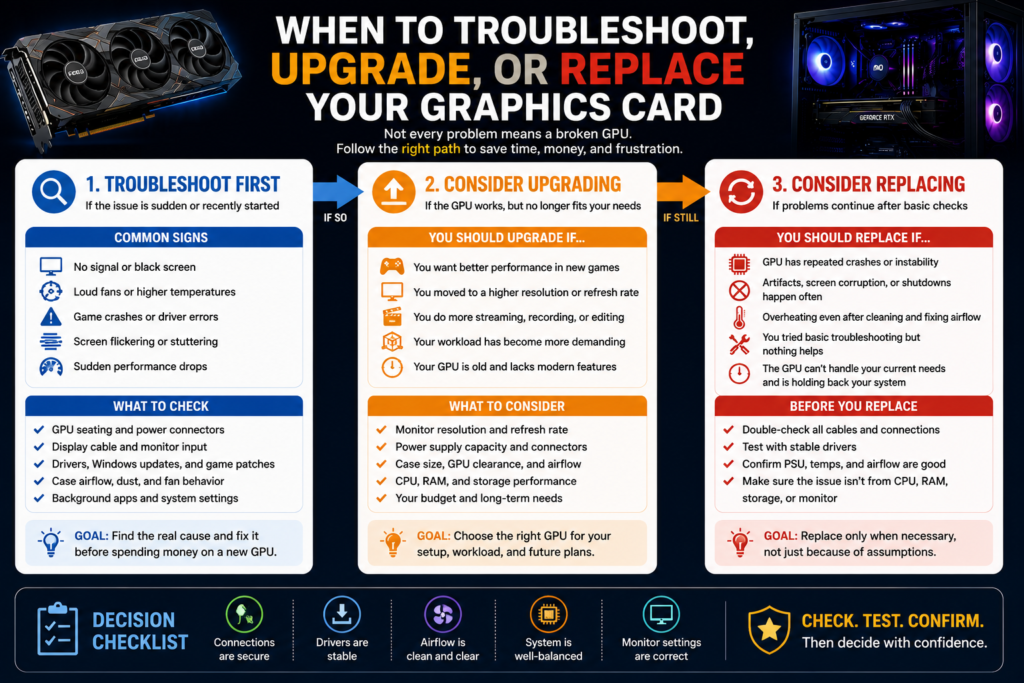
Not all graphics card problems mean you need a new GPU. Some issues can be fixed by checking cables, cleaning dust, updating or rolling back drivers, improving airflow, or correcting monitor settings. Other problems may show that your current graphics card no longer fits your needs. The key is knowing when to troubleshoot first and when it makes more sense to upgrade or replace the card.
Start with troubleshooting if the problem appeared suddenly. A black screen, screen flicker, driver crash, loud fan noise, or poor performance can come from loose connections, recent software updates, blocked airflow, wrong display settings, or background apps. These are usually worth checking before spending money on a new graphics card.
| Situation | Best First Step | Why |
|---|---|---|
| No signal after installation | Troubleshoot first | Check GPU seating, power connectors, monitor input, and whether the display cable is connected to the graphics card. |
| Loud fans or higher temperatures | Troubleshoot first | Dust buildup, poor airflow, blocked fans, or bad cable management may be causing the issue. |
| Game crashes after a driver update | Troubleshoot first | The issue may come from the driver, game patch, Windows update, or background software conflict. |
| Your GPU works, but feels too limited for new games or creative work | Consider upgrading | The card may still function, but it may no longer match your monitor, workload, or performance expectations. |
| Repeated instability after basic checks | Consider professional diagnosis or replacement | If cables, drivers, airflow, PSU, and monitor settings have been checked, deeper hardware issues may need expert help. |
You should consider upgrading if the graphics card still works but no longer matches your real use case. For example, a card that was fine for basic 1080p gaming may feel limited if you move to a higher-resolution monitor, heavier creative projects, streaming, AI-assisted tools, or more demanding games. In that case, the issue is not always a “broken” GPU. It may simply be the wrong GPU for your current needs.
You should be more cautious about replacing the card if the problem is inconsistent or recently started after a system change. A new driver, new game update, Windows update, monitor change, cable change, or case fan change can all create symptoms that look like GPU failure. If the issue started after one specific change, test that change before assuming the graphics card is the root cause.
Replacement makes more sense when the card has repeated issues after basic troubleshooting, no longer stays stable in normal use, or cannot reasonably support your current workload. Even then, check the rest of the system before buying a new GPU. A weak power supply, poor case airflow, older CPU, limited RAM, or slow storage can make a new graphics card feel worse than expected.
If you do upgrade, match the replacement to your actual setup. A practical 1080p-focused user does not need the same GPU as someone building for 4K gaming, heavy rendering, or long-term creative work. The best upgrade is the card that fits your monitor, power supply, case clearance, airflow, workload, and budget direction.
Quick takeaway: Troubleshoot first when the issue is sudden, upgrade when your current GPU still works but no longer fits your needs, and replace the card only after checking cables, drivers, airflow, monitor settings, power supply, and the rest of your PC.
FAQ
Why is my graphics card overheating?
Graphics card problems related to overheating usually come from poor airflow, dust buildup, blocked fans, weak case ventilation, or heavy workloads. The GPU may not be defective. It may simply be working inside a case that does not move enough cool air through the system.
Start by checking the simple causes first. Clean dust from the case filters and fans, make sure the GPU fans are not blocked, check that intake and exhaust fans are working, and keep cables away from the graphics card airflow path. If temperatures or fan noise changed suddenly, also check whether a new game, driver update, or background app increased the GPU workload.
Why does my PC show no signal after installing a new GPU?
A no-signal problem after installing a new GPU often comes from a setup mistake rather than a broken graphics card. The most common checks are GPU seating, power connectors, monitor input, and display cable placement.
Make sure the display cable is plugged into the graphics card, not the motherboard display port. Then check that the GPU is fully seated in the PCIe slot, the required power connectors are firmly attached, and the monitor is set to the correct input. If the system still shows no signal, try another cable or another monitor port before assuming the GPU has failed.
How do I know if my graphics card is failing?
A failing graphics card may show repeated crashes, display artifacts, black screens, severe instability, or problems that continue after basic troubleshooting. But these symptoms can also come from drivers, power supply issues, overheating, bad cables, monitor problems, or system instability.
Before deciding the card is failing, check the basics: clean airflow, stable drivers, secure power connectors, proper GPU seating, another display cable, and another monitor port. If the same problems continue across different games, drivers, cables, and basic checks, then professional diagnosis or replacement may be worth considering.
Can a weak power supply cause GPU problems?
Yes, a weak, old, low-quality, or overloaded power supply can cause graphics card problems. Possible signs include black screens, crashes, shutdowns, instability under load, or the system failing to boot after a GPU upgrade.
Do not guess the power supply requirement. Check the official PSU recommendation and connector requirements from the graphics card product listing or manufacturer page. Also consider the full system, including the CPU, storage, fans, and other components. A PSU that is barely enough on paper may still leave less headroom for long-term stability.
How often should I clean my graphics card?
There is no single cleaning schedule that fits every PC because dust buildup depends on your room, case airflow, fan filters, pets, flooring, and how often the system runs. A cleaner room and filtered case may need less frequent cleaning, while a dusty environment may need attention more often.
A practical approach is to inspect your PC regularly and clean dust before it blocks fans, filters, or heatsinks. Focus on safe light cleaning: power off the system, unplug it, clean case filters, remove visible dust, and avoid touching delicate GPU components. Do not use liquids directly on the graphics card, and do not force tools into the heatsink or fan area.
Should I update my GPU drivers immediately?
You do not always need to update GPU drivers immediately if your system is stable. New drivers can improve support for games, apps, and bug fixes, but they can also introduce new problems in some setups.
A safer rule is to update with a reason. Update if you need support for a new game, creative app, productivity tool, or stability fix. If your system starts crashing right after a driver update, check whether the issue began with that update and consider rolling back to a previous stable version. Avoid changing too many things at once, because that makes the real cause harder to identify.
Can a graphics card be too powerful for my PC?
Yes, a graphics card can be more powerful than the rest of your PC can realistically use. This does not mean the GPU will always fail, but it can reduce value and create bottlenecks if your monitor, CPU, RAM, storage, power supply, case clearance, or cooling setup cannot support it properly.
For example, a high-end GPU may not make sense if you only use a basic 1080p monitor or play lighter games. A stronger card also needs proper power planning, physical clearance, and airflow. The best GPU is not always the highest-tier model. It is the one that matches your monitor, workload, system, and upgrade plan.
When should I replace my graphics card?
You should consider replacing your graphics card when it no longer fits your workload, cannot support your monitor goals, or continues to show serious problems after basic troubleshooting. But replacement should not be the first step for every issue.
Start by checking cables, monitor input, drivers, airflow, dust, GPU seating, power connectors, and system stability. If the card still works but feels too limited for newer games, heavier creative projects, higher-resolution displays, or AI-related workloads, then upgrading may make sense. If instability continues after reasonable checks, professional diagnosis or replacement may be the better next step.
Quick takeaway: Most graphics card problems should be checked step by step before replacing the GPU. Start with power, cables, drivers, airflow, monitor settings, and system bottlenecks. Replace or upgrade only when the card no longer fits your needs or problems continue after basic troubleshooting.
Final Thought
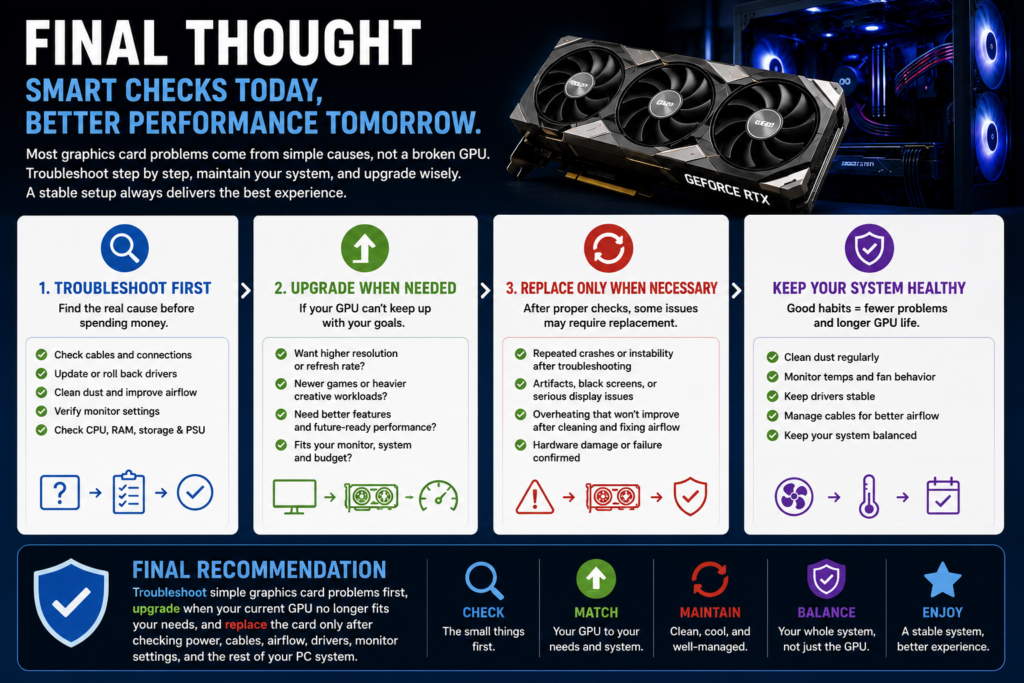
Most graphics card problems should be checked step by step before you decide the GPU is broken. Overheating, no signal, flickering, driver crashes, loud fan noise, and poor performance can all come from simple causes such as loose cables, poor airflow, dust buildup, unstable drivers, wrong monitor settings, or a weak power supply.
The biggest mistake is replacing the graphics card too quickly. A new GPU may not solve the problem if the real issue is the power supply, case airflow, CPU bottleneck, limited RAM, slow storage, or incorrect display setup. Before spending money on an upgrade, check the basics first and make sure the rest of your PC can support the card properly.
Good installation and maintenance also matter. Make sure the GPU is seated correctly, the display cable is connected to the graphics card, the power connectors are secure, and the case has enough airflow. Over time, clean dust carefully, watch for unusual fan behavior, and keep cables away from the GPU cooling path.
| If You Notice… | Check First | Do Not Rush To… |
|---|---|---|
| No signal after installation | GPU seating, display cable, monitor input, and power connectors | Assume the graphics card is dead |
| Overheating or loud fan noise | Dust, case airflow, blocked fans, and cable management | Replace the GPU before checking cooling |
| Driver crashes or game instability | Recent driver updates, game patches, Windows updates, and background apps | Change multiple settings at once |
| Poor performance | Monitor settings, CPU, RAM, storage, and system temperatures | Blame the GPU without checking bottlenecks |
If your current graphics card still works but no longer matches your games, monitor, creative workload, or long-term needs, then upgrading may make sense. But if the issue appeared suddenly, troubleshoot first. A sudden problem is often easier to trace than a long-term performance limitation.
Final recommendation: troubleshoot simple graphics card problems first, upgrade only when your current GPU no longer fits your needs, and replace the card only after checking power, cables, airflow, drivers, monitor settings, and the rest of your PC system.
READ MORE
Need help choosing the right GPU? Read our complete graphics card buying guide for detailed comparisons, key specifications, and practical buying advice.